

About AI Policy Editor
The AI Policy Editor is an intelligent assistant that helps you create, edit, and improve organizational policies. Built with deep knowledge of compliance frameworks like SOC 2, ISO 27001, and GDPR, the assistant understands governance, risk, and compliance (GRC) requirements and can help ensure your policies meet industry standards. Key Benefits:- Natural Language Editing: Describe changes in plain English and let AI handle the formatting
- Compliance Expertise: Get suggestions aligned with SOC 2, ISO 27001, GDPR, and other frameworks
- Visual Diff Review: See exactly what changed before applying any edits
- Non-Destructive Workflow: Review and approve all changes before they’re saved
Getting Started
Step 1: Open the Policy Editor
- Navigate to Policies in your organization dashboard
- Click on any policy to open it
- Select the Editor View tab
Step 2: Enable the AI Assistant
- Click the AI Assistant button in the top-right corner of the editor
- A chat panel will appear on the right side of the screen
- You’re now ready to start editing with AI
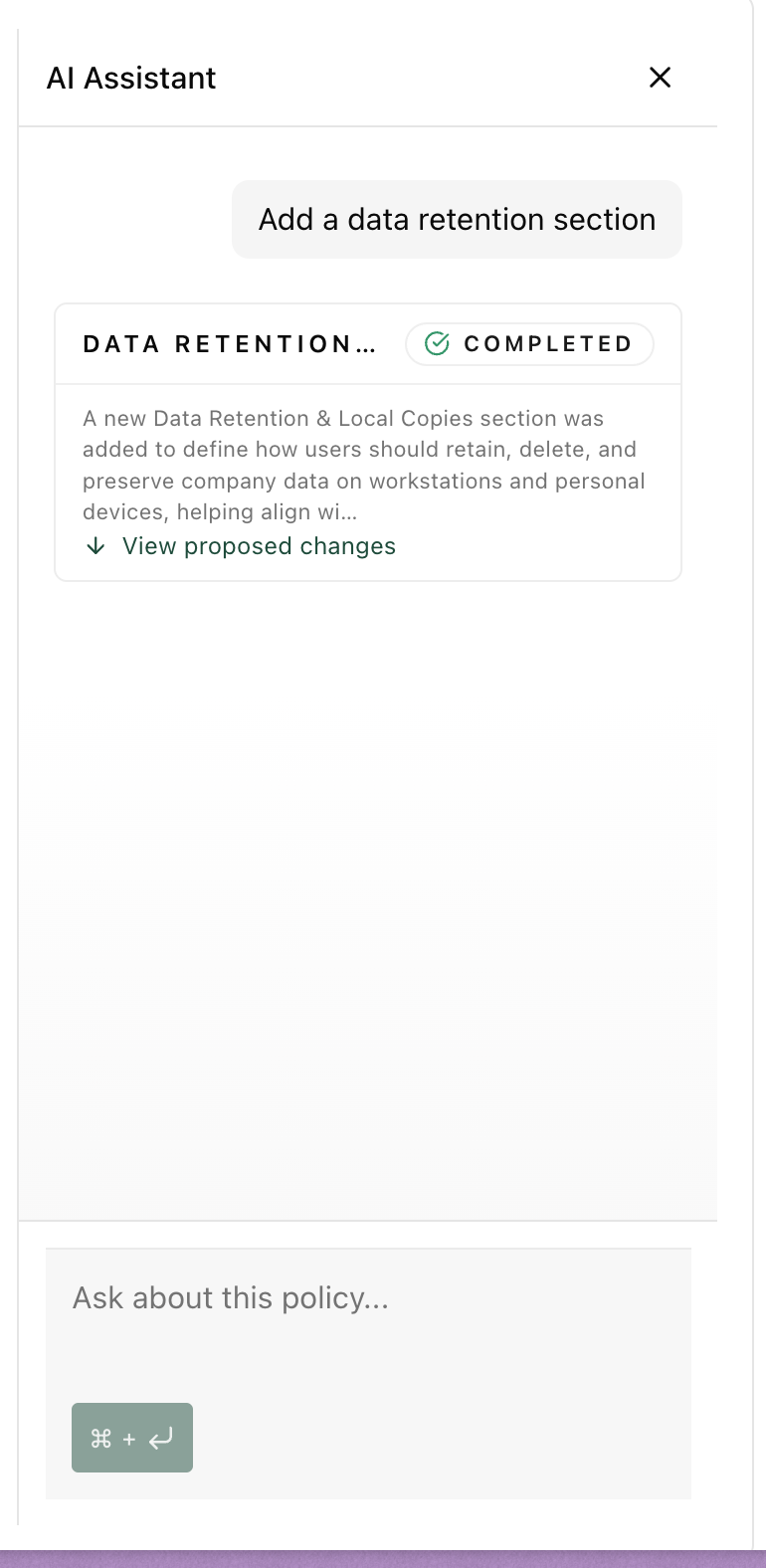
Using the AI Assistant
The AI assistant responds to natural language requests. Simply describe what you want to change, and the assistant will propose a complete updated version of your policy. Example Prompts:| Request Type | Example Prompt |
|---|---|
| Add content | ”Add a data retention section that specifies 7-year retention for financial records” |
| Improve compliance | ”Make this policy more SOC 2 compliant” |
| Simplify language | ”Simplify the language to be more readable” |
| Add specifics | ”Add specific roles and responsibilities for incident response” |
| Framework alignment | ”Update this to align with ISO 27001 Annex A controls” |
The AI always proposes complete policy content, not just fragments. This ensures formatting
consistency and prevents accidental content loss.
Reviewing Proposed Changes
When the AI proposes changes, you’ll see a status indicator showing the progress:- Drafting: The AI is preparing the updated policy
- Running: The proposal is being processed
- Completed: Changes are ready for your review
- Red lines: Content being removed
- Green lines: Content being added
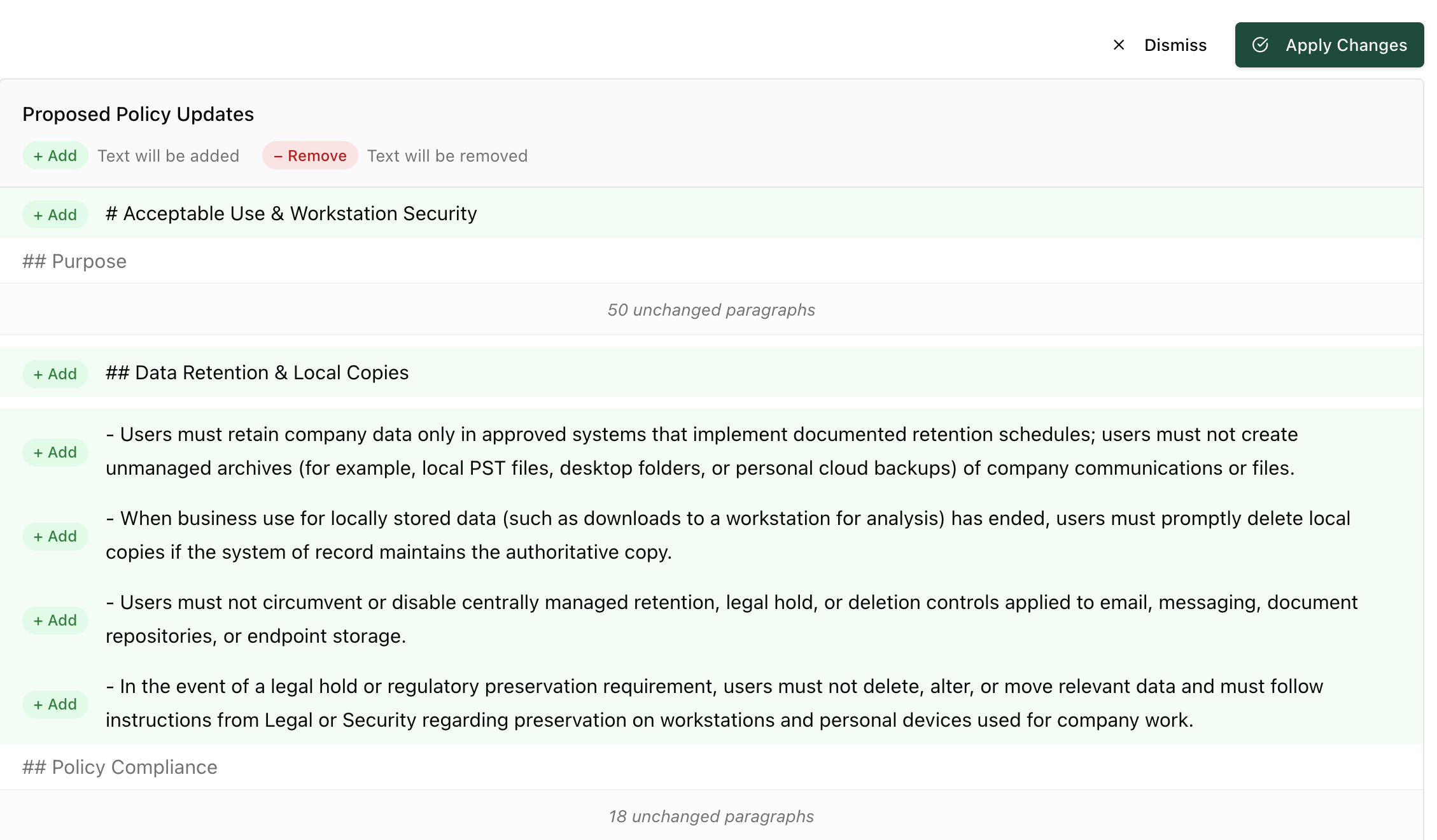
Applying or Dismissing Changes
After reviewing the diff:- Click Apply Changes to accept the proposed edits
- Click Dismiss to reject the changes and keep your current content
Best Practices
- Be Specific: The more detail you provide in your request, the better the results. Instead of “improve this policy,” try “add a section about password complexity requirements with 12-character minimum.”
- Review Before Applying: Always review the diff carefully before applying changes. The AI provides complete rewrites, so verify all sections are preserved as expected.
- Iterative Editing: Make changes incrementally. Request one type of change at a time for easier review and better control over the final result.
- Ask Questions First: If you’re unsure what changes to make, ask the AI for suggestions. It can explain compliance requirements and recommend improvements before you commit to changes.
- Keep Policies Published: Ensure your policies are published so other AI features (like Security Questionnaire) can reference the most current versions.
Troubleshooting
AI Assistant Not Appearing Ensure you’re viewing the policy in Editor View mode, not PDF View. The AI assistant is only available in the editor. Changes Not Applying If changes fail to apply, check your network connection, ensure you have edit permissions for the policy, and try refreshing the page. Unexpected Content Changes If the AI modified sections you didn’t intend to change, click Dismiss to reject the changes. Be more specific in your next request about which sections to modify, or reference sections by name.Support
For additional assistance with the AI Policy Editor:- Contact support at support@trycomp.ai
- Join our Discord community for peer support