

Overview
Trust Access enables secure, controlled access to your compliance documentation for external users. This system manages the complete access lifecycle—from initial requests through NDA signing, access grants, and ongoing management—while maintaining full audit trails for compliance purposes.1. Key Concepts
Trust Access consists of four core components:- Access Request: An external user’s initial request to access your compliance documentation.
- NDA Agreement: A legally binding document that must be digitally signed before access is granted.
- Access Grant: A time-limited authorization window (configurable, default 30 days) during which the user has access.
- Access Link: A secure, time-limited email link that authenticates the user and grants portal access.
Time Limits and Expiration
Each component has specific time constraints:| Item | Duration | Notes |
|---|---|---|
| NDA Signing Link | 7 Days | Expires if not signed within 7 days. Administrators can resend the link. |
| Access Grant | 7–365 Days | Configurable access window. Default duration is 30 days. |
| Access Link | 24 Hours | Email authentication links expire after 24 hours for security. |
2. Prerequisites
Before using Trust Access, ensure the following is configured:- Published Trust Portal: The portal must be published and publicly accessible for users to submit access requests.
3. Workflow: Step-by-Step
Step 1: Access Request Submission
When external visitors access your public Trust Portal, they see a Request Access button. Clicking this button opens a form where they provide:- Full name and email address
- Company name and job title
- Reason for requesting access

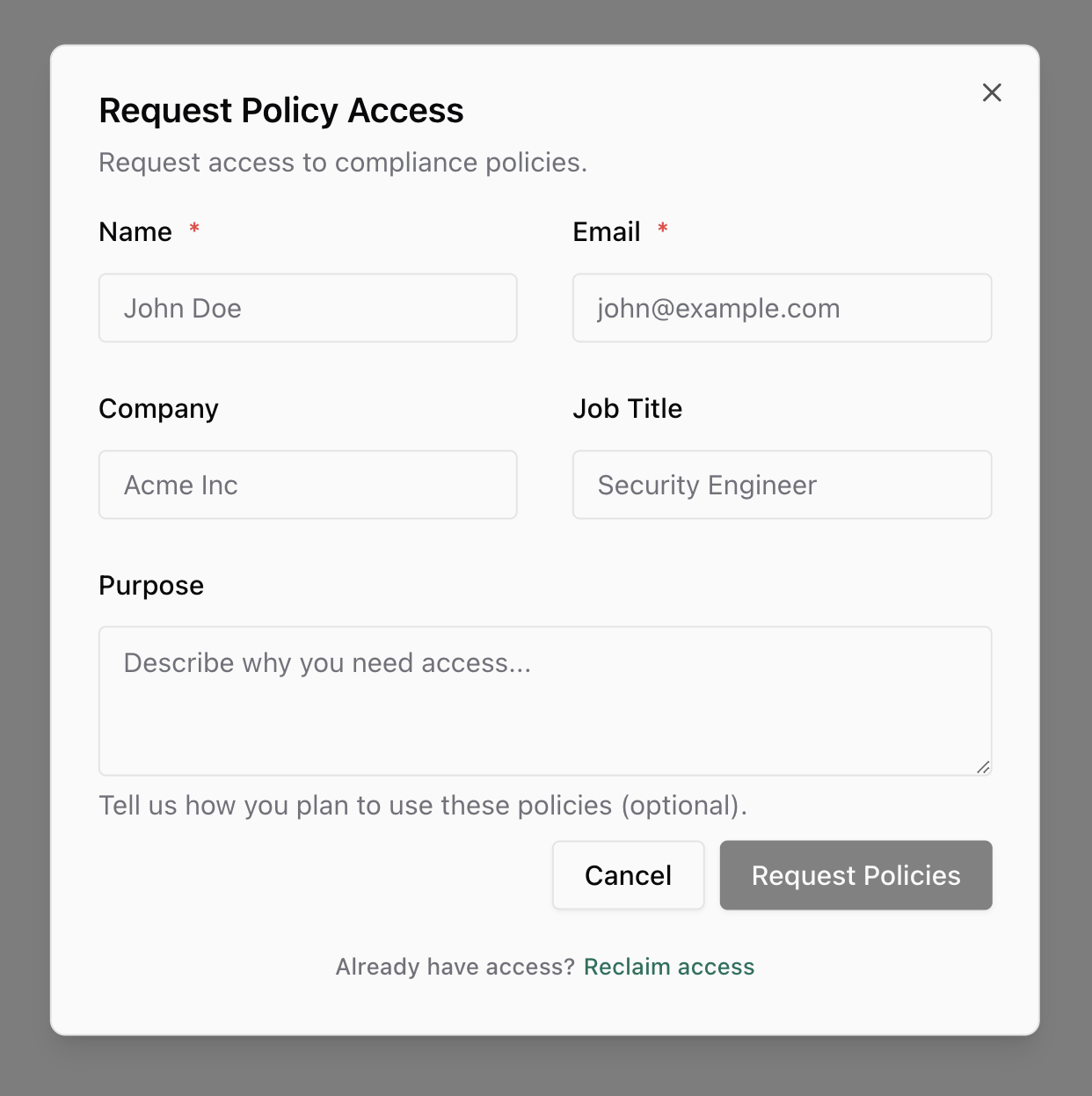
Pending status. If the user already has an active access grant, they see: “You already have active access.” If a pending request exists, duplicate submissions are blocked.
Step 2: Administrative Review and Decision
Access the Trust Access Management dashboard to view all pending access requests. Each request displays the requester’s information, purpose, submission timestamp, and current status.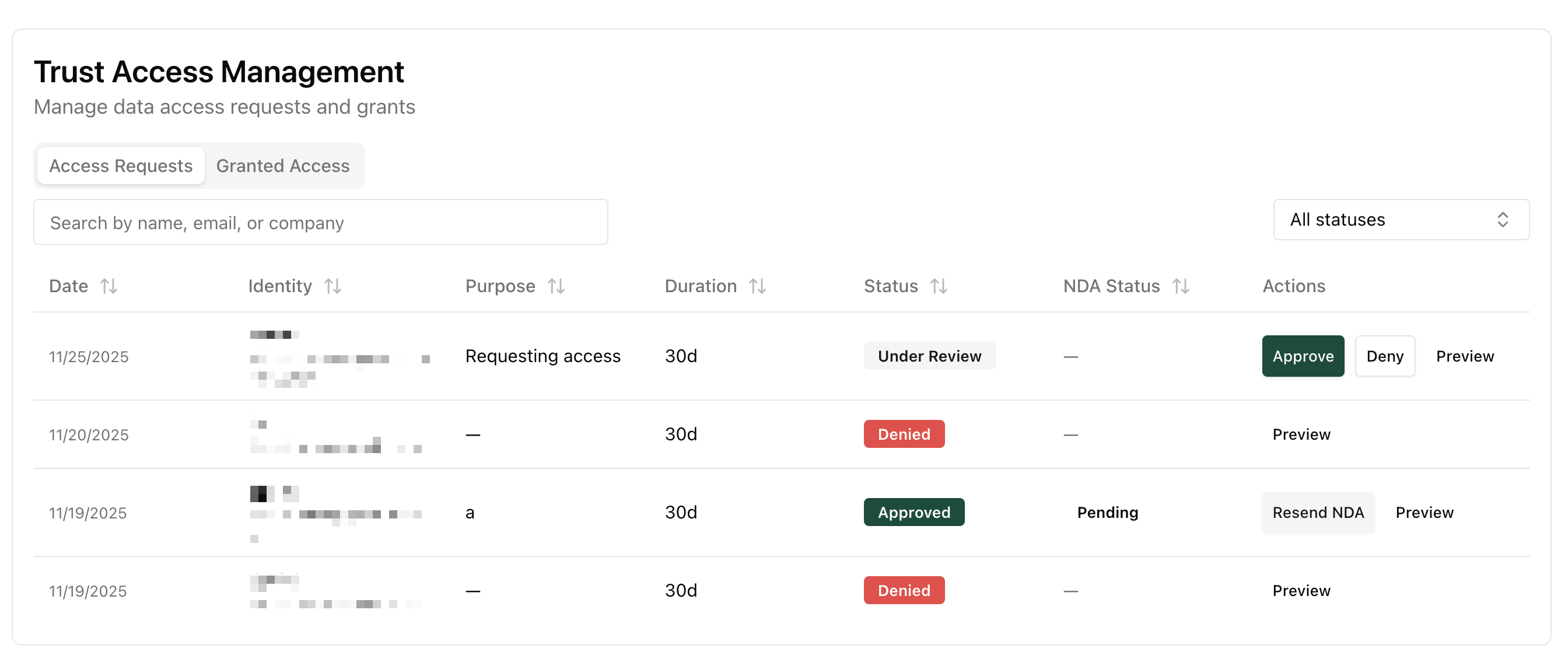
Option A: Approve Access Request
- Click on the request to view complete details
- Configure the access grant period (7-365 days, default 30 days)
- Click Approve & Send NDA to proceed
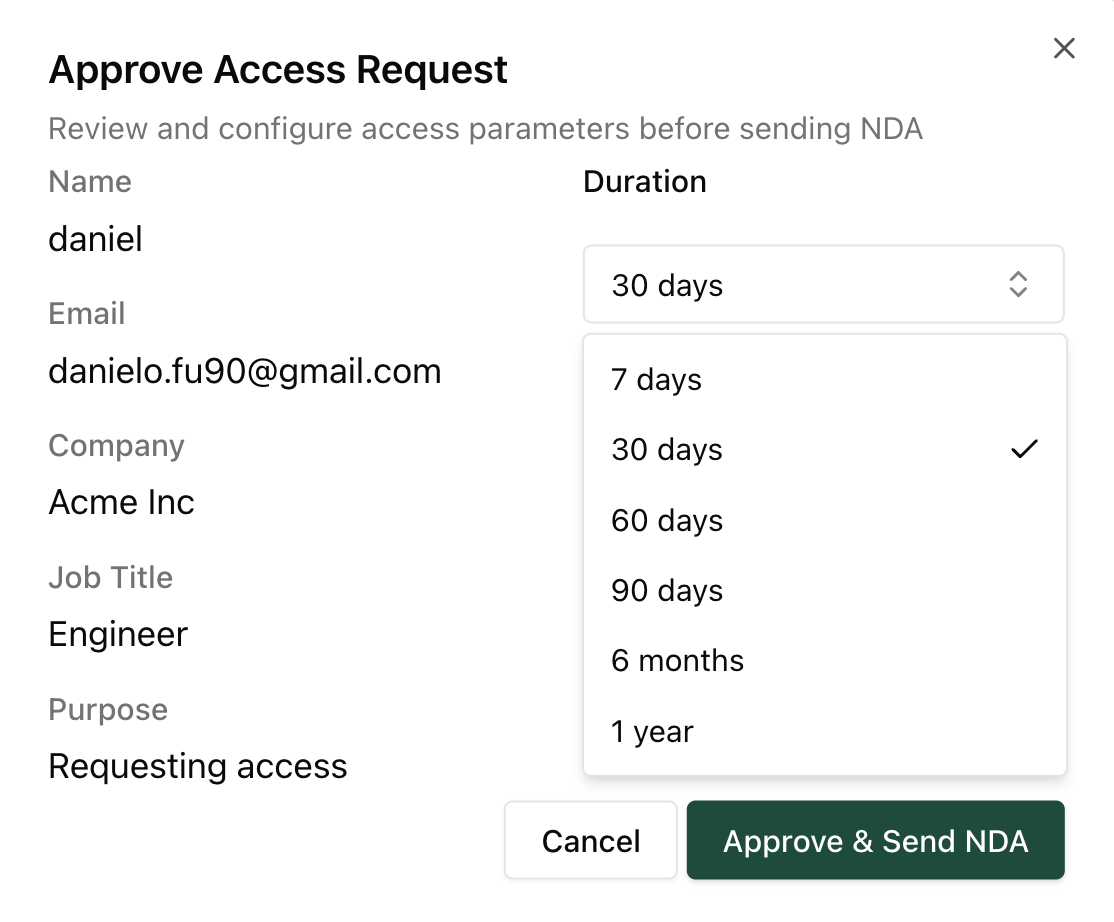
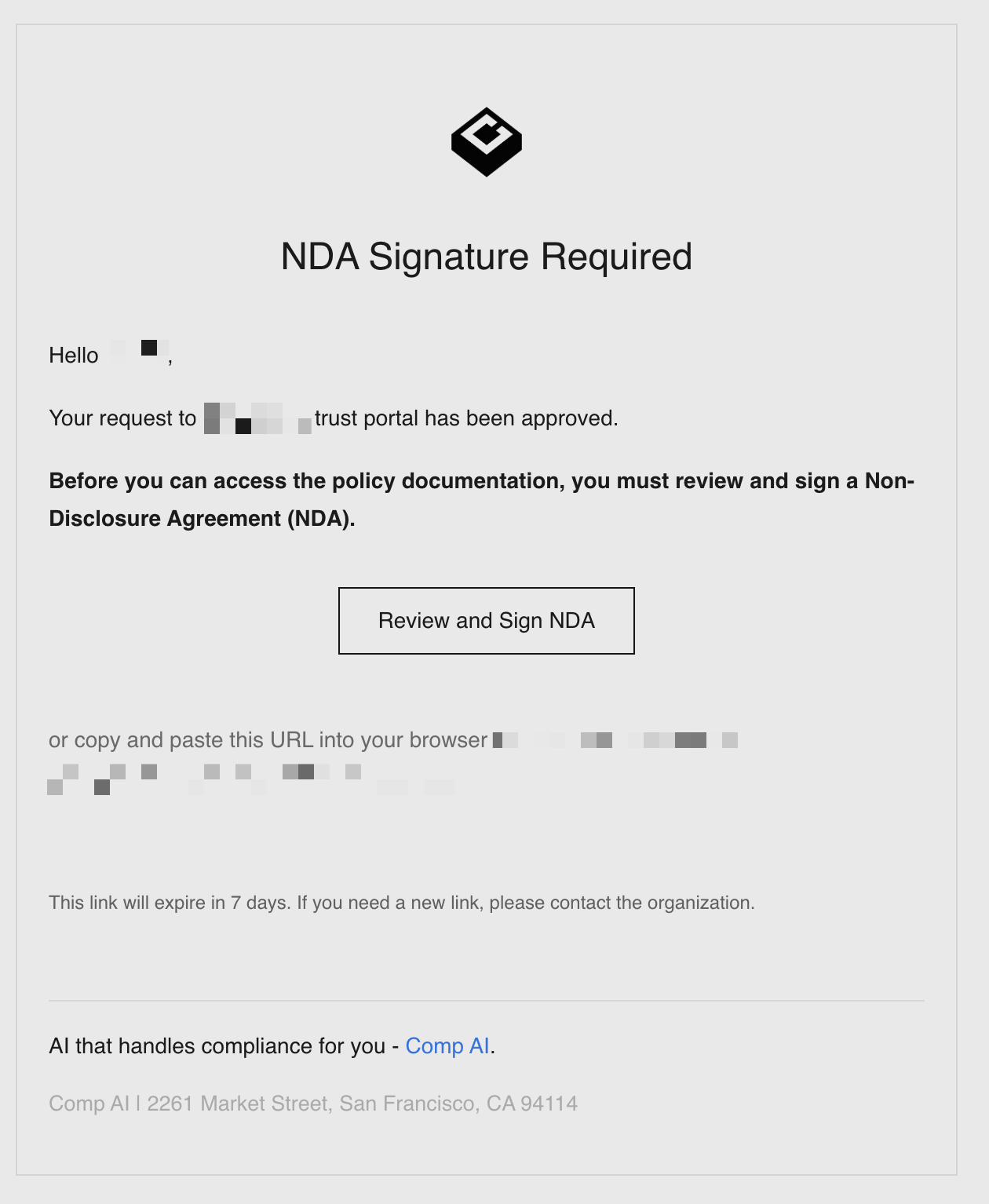
Approved, a pending NDA agreement is generated, and an email is sent to the requester with an NDA signing link (valid for 7 days). The requester receives an email notification: “NDA Signature Required” with a secure link to review and sign the NDA.
Option B: Deny Access Request
- Provide a reason for denial
- Click Deny to reject the request
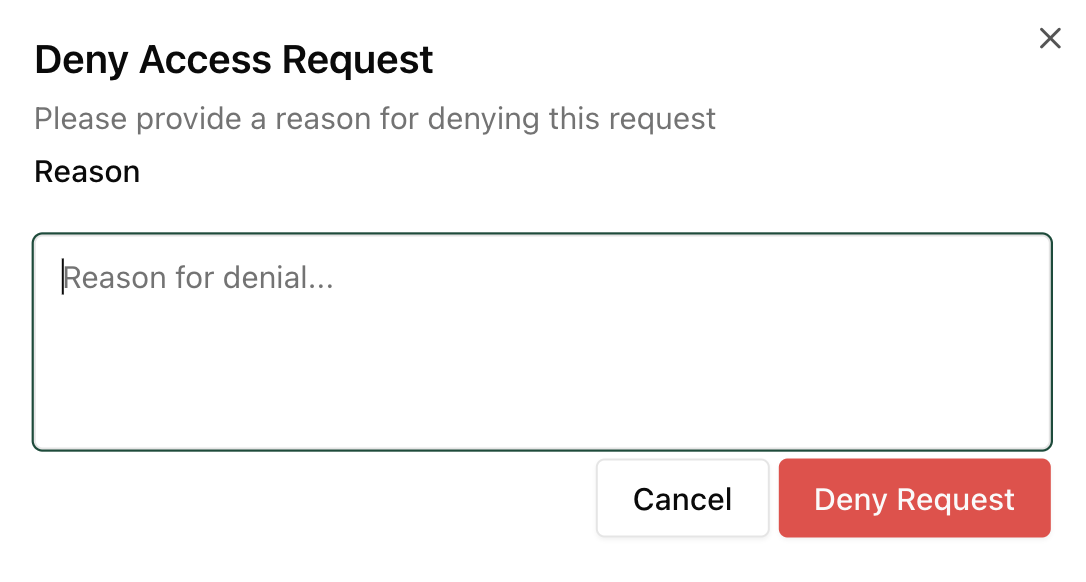
Denied and the denial reason is logged in the audit trail. No email notification is sent to the requester.
Step 3: NDA Signing Process
- The requester receives an email with subject “NDA Signature Required” containing a secure signing link
- Clicking the link opens a secure page displaying the complete NDA document
- They provide their digital signature to accept the agreement
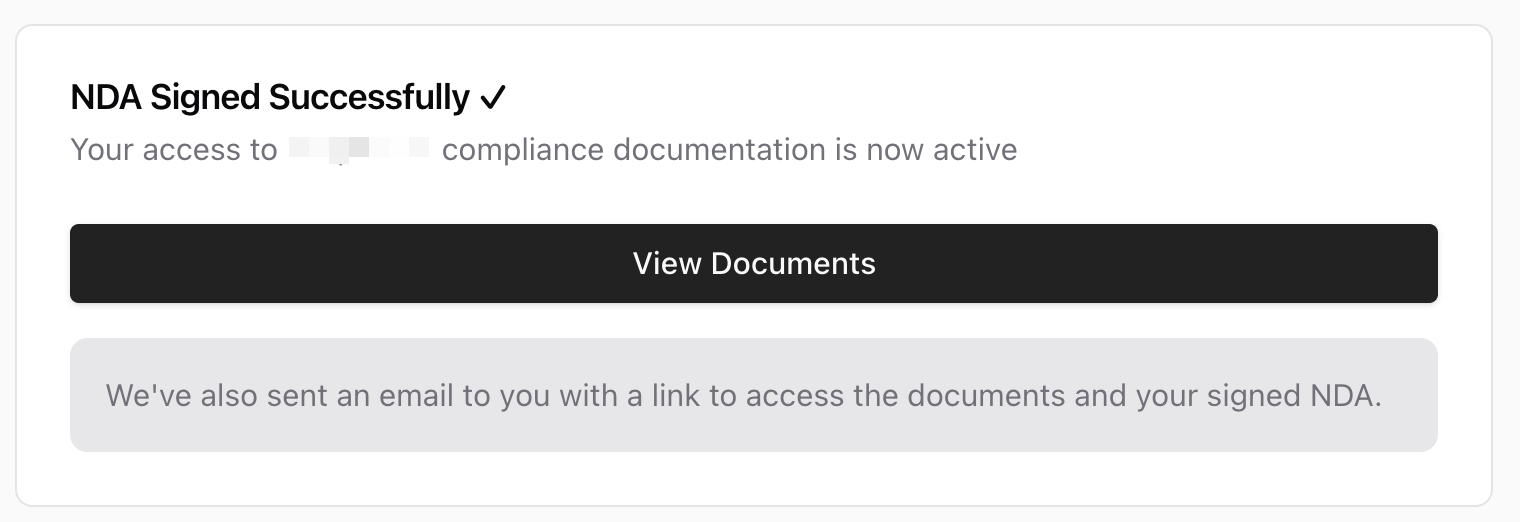
- After signing, they receive confirmation that the NDA has been completed
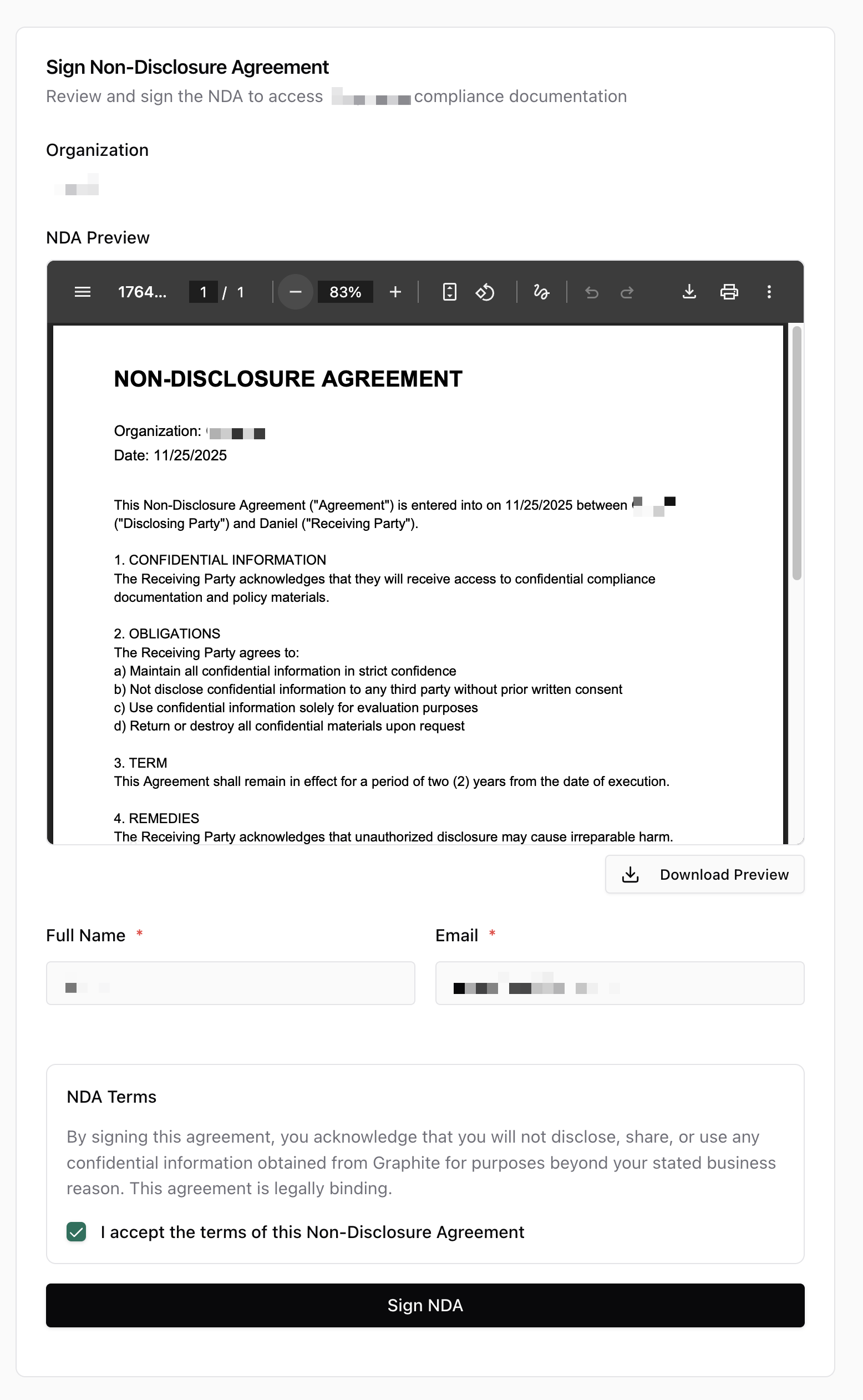
Signed in the dashboard, the signed NDA PDF is available for download, and the access grant is automatically activated. The audit log captures the signing timestamp, signer’s IP address, User Agent information, and the final signed PDF document.
NDA Link Expired status and can use Resend NDA to generate a new link. If users attempt to access an already-signed NDA link, they are redirected to the portal.
Step 4: Portal Access Granted
After successfully signing the NDA, users receive an email notification: “Access Granted”. This email contains their first Access Link (valid for 24 hours). Once authenticated via the access link, users can:- Browse and read all published, non-archived compliance policies
- Generate a single PDF bundle containing all accessible policies
- The downloaded PDF bundle is watermarked with the user’s full name, email address, and a unique document identifier
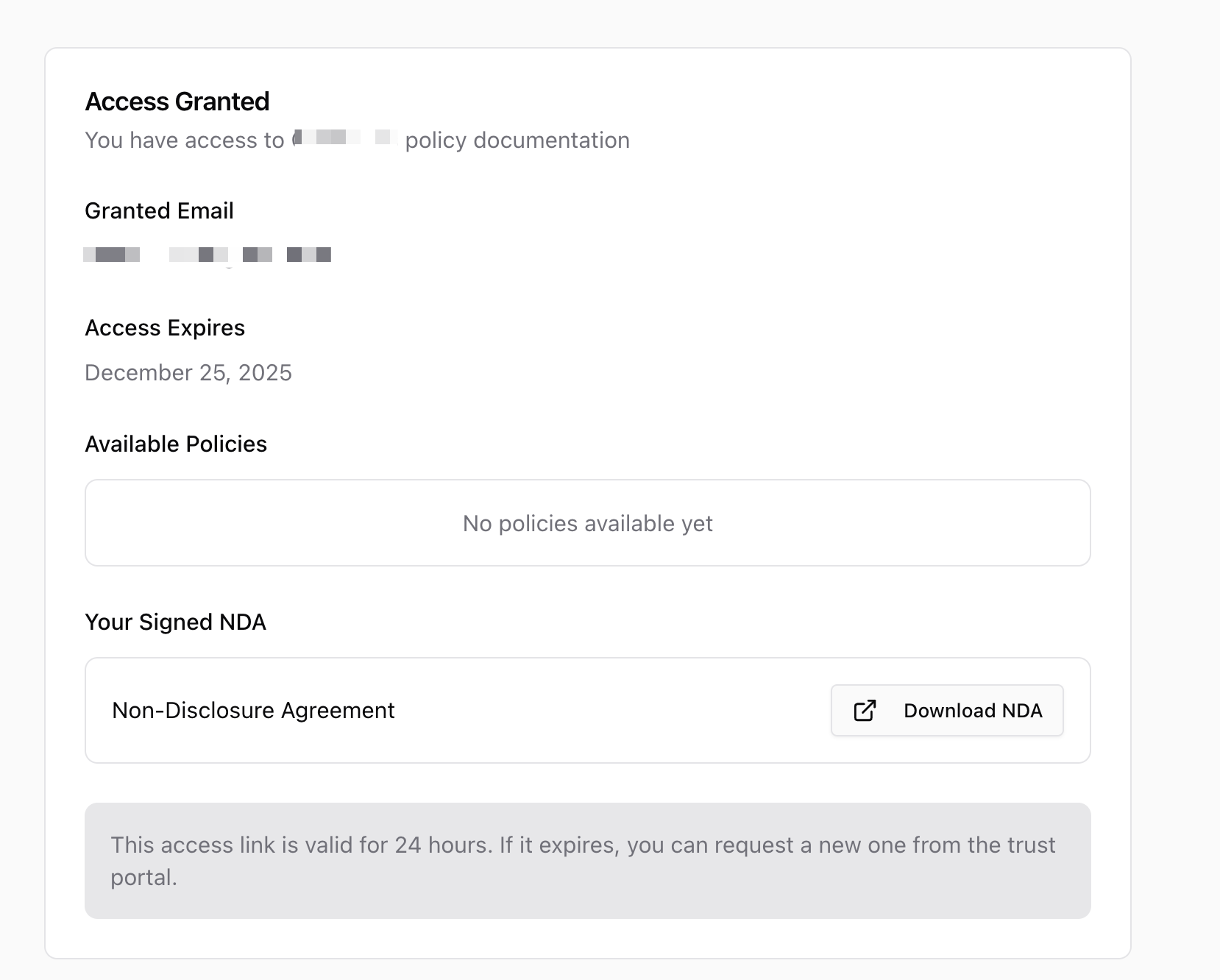
Active in the dashboard, the grant expiration date is visible, and download activity is logged when users generate PDF bundles.
4. Managing Active Access
Reclaiming Access (Expired Access Links)
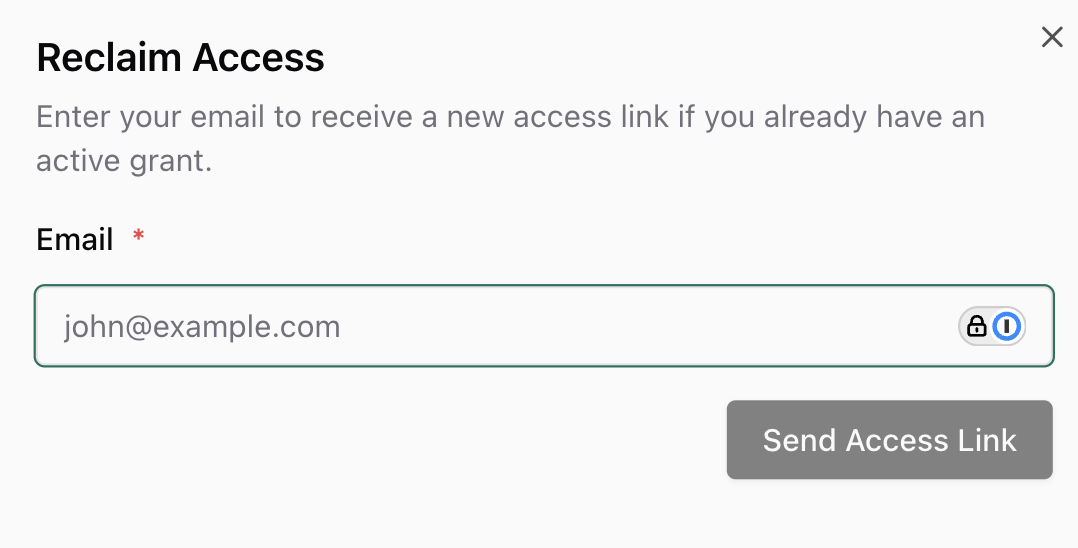
Access links expire after 24 hours. If a user attempts to use an expired link, they can reclaim access without administrator intervention:- Navigate to the Trust Portal
- Click Reclaim Access
- Enter their email address
Revoking Access
Access can be revoked at any time through the Grants section of the dashboard:- Navigate to the Grants list in the dashboard
- Locate the active grant for the user
- Click Revoke
- Enter a reason for revocation
Revoked, the signed NDA is marked as Void, all active access links are immediately invalidated, and the revocation action is logged in the audit trail. Any active access links stop working immediately, and users must submit a new access request if access is needed again.